Showing posts with label FRP BYPASS HUAWEI. Show all posts
Unlock Huawei MediaPad M3 Lite 10 (BAH-W09) FRP Bypass

Unlock Huawei MediaPad M3 Lite 10 (BAH-W09) FRP Bypass

unlock frp Huawei mediapad m3 lite frp bypass tool

What Is Google Account Verification Huawei Mediapad m3 lite

Frp (factory reset protection) lock is a security feature implemented by google on android devices to protect user data and prevent unauthorized access. When this lock is enabled on your Huawei mediapad m3 lite, it requires google account verification after a factory reset or when you try to set up the device for the first time.
Understanding the frp lock on your huawei mediapad m3 lite is crucial to ensure a smooth user experience without any unnecessary complications.
Here are the key points to understand about frp lock on huawei mediapad m3 lite:

  • Frp lock is a security measure introduced by google to deter theft and unauthorized access to android devices, including your huawei mediapad m3 lite 10.
  • It prevents anyone from resetting your device or using it without your permission, even if it falls into the wrong hands.
  • When frp lock is enabled on your huawei mediapad m3 lite, it requires the entry of the last synced google account credentials before allowing access to the device.
  • Frp lock is highly effective in safeguarding your personal information, as it ensures that a thief or unauthorized user cannot access your data or use your device without your google account details.
  • It adds an extra layer of security to your huawei mediapad m3 lite, making it difficult for anyone to bypass the lock and gain unauthorized access to your device or data.
If your Huawei Mediapad M3 Lite is locked due to a Google account verification (Google account lock), it means the device has Factory Reset Protection (FRP) activated, and it requires the previously synced Google account credentials to access the device after a factory reset.

If you have forgotten the Google account credentials or are unable to access the device due to this lock, you have a few options:

Please remember that bypassing security measures can have consequences and may not be legal in some regions. Always ensure that you are the rightful owner of the device and use legitimate means to address these issues to protect your data and device.

How to Google Account Verification on Mediapad m3 lite 10

It is important to note that bypassing the frp lock without proper authorization or ownership rights is against Google's policies. If you encounter difficulties with frp lock, it is recommended to follow the official procedures provided by google and Huawei to regain access to your huawei mediapad m3 lite.


Before you start with this process you need to fulfill all the prerequisite criteria to unlock FRP Samsung.

  • Your device must have 20-60% of the battery charge before performing the FRP process.
  • Download Link: USB Redirector DM = USBv9.7
  • Most important follow the below guide properly.

Get Premium Service DM Unlocker Assistant Instantly⬇

📩 Direct Inbox: m.me/DMRepairTech
☎️ WhatsApp Direct Chat👉: Click Here

dm repair tech frp dm Unlocker Assistant

    How to Bypass Google Verification on MediaPad M3 Lite

    1- Open USB Redirector Download Link on your computer.
    2- Get Remote technical ID > Contact DM Unlocker Assistant:

    • Put Technician ID > Additional place: Put Any name.
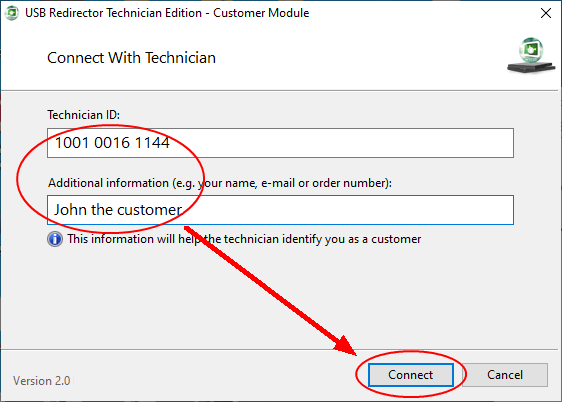
    Samsung Galaxy Tab A7 Lite DM Unlocker

    3- Make Fastboot (Turn OFF Tablet > Hold long Press Volume Down ket connect USB Cable).
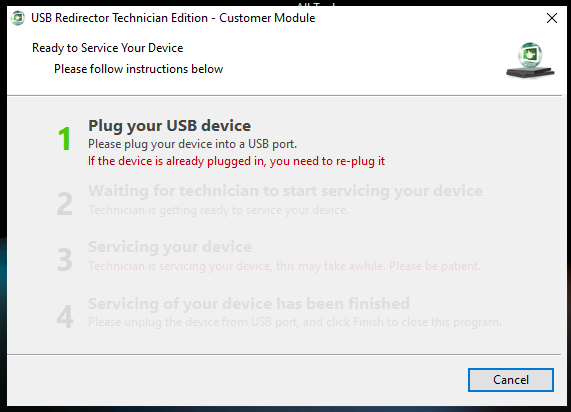
    USB Redirector Samsung FRP Tool

    4- you will see 2 Waiting for technician to start servicing your device.
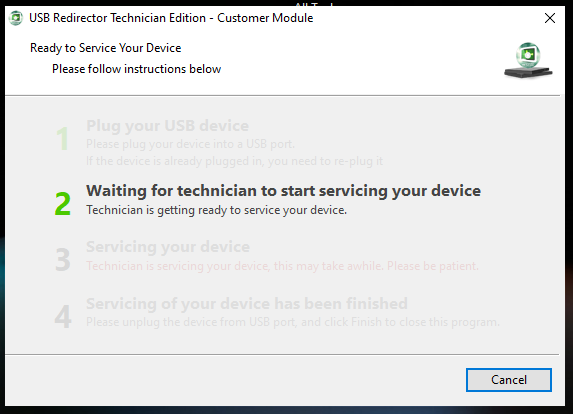
    USB Redirector Samsung FRP Tool

    5- When 3 Servicing your device to going step 4 Finished.
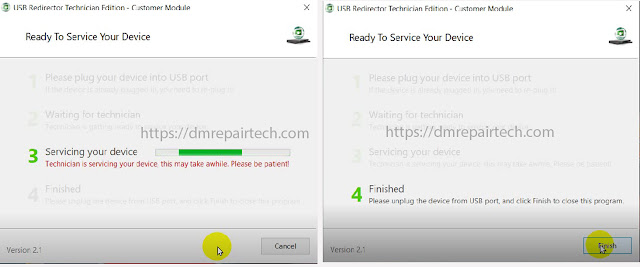

    Finally, Your Tablet M3 Lite FRP/Google Account Removed by DM Unlocker.

    Device Model: BAH-W09

    Device Serial: PFSNU18428124405

    Device IMEI: PFSNU18428124405

    Device Firmware: BAH-W09C100B257

    Device Lock: Image is origin | Verify mode is enforcing | Check root info is safe | Lock state is lock | Root State: UNROOT

    Waiting for server.....OK

    Reading data.....OK

    Posting data to server.....OK

    Waiting for server response.....OK

    Unlocking device.....OK

    Resetting FRP.....OK

    How to Bypass Google Account on MediaPad M3 Lite


    Factory Resetting The Device After Successful Bypass

    • After successfully bypassing the frp lock on your huawei mediapad m3 lite, it is recommended to perform a factory reset. This step ensures a clean slate and removes any unnecessary data. Consider the following:
    • Go to your device's settings and navigate to the "backup & reset" section.
    • Select "factory data reset" and confirm the action.
    • Be aware that a factory reset will erase all data on the device, so make sure to back up any important files beforehand.
    By following these additional tips, you can increase the chances of a successful frp bypass on your huawei mediapad m3 lite. Troubleshoot any issues, ensure a valid google account, keep your device updated, and perform a factory reset for a seamless experience.
    Now you can enjoy your device without the frp lock hindering your access.

    Frequently Asked Questions For Huawei Mediapad M3 Lite Frp Bypass Google Account Lock

    How Can I Bypass Google Account Lock On Huawei Mediapad M3 Lite?

    To bypass the google account lock on your huawei mediapad m3 lite, follow these steps carefully.

    Conclusion

    To wrap up, the huawei mediapad m3 lite frp bypass google account lock is a crucial process for those who want to regain access to their device. By following the step-by-step guide provided in this blog post, users can successfully bypass the frp lock and unlock their huawei mediapad m3 lite.

    With an understanding of the different methods available, users can choose the one that best suits their needs. Remember to exercise caution and take necessary backup precautions before proceeding with any frp bypass method. By knowing how to bypass the frp lock, users can avoid being locked out of their huawei mediapad m3 lite and continue using their device with ease. 
    Huawei Y9 2019 AMN-L29 9.1.0.333(C185E3R5P1) Firmware Free

    Huawei Y9 2019 AMN-L29 9.1.0.333(C185E3R5P1) Firmware Free

    AMN-L29 9.1.0.333(C185E3R5P1) Firmware Download

    AMN-L29 9.1.0.333(C185E3R5P1)_Firmware

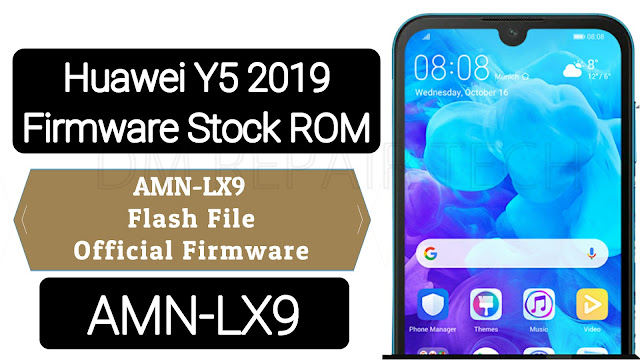
    if you have a Huawei Device, You can flash Huawei Y5 2019 Stock firmware to upgrade or downgrade your Huawei smartphone, or if you want to repair your Huawei Y5 2019 if it is stuck on Huawei logo, Boot Screen, or stuck in boot loop… or you don’t receive the OTA update for any reason.

    Huawei Y5 2019 powered by Quad-core 2.0 GHz MediaTek MT6761 chipset, the device has 2 GB RAM 16 GB ROM And 32GB 2GB Ram. Huawei Y5 2019 comes with 5 MP in front & single CAMERA 13 MP in back. Huawei Y5 2019 offers a 5.71-inch IPS LCD with a resolution of 720 x 1520 pixels, The Huawei Y5 2019 Run EMUI 9.1 based on Android 9.0 Pie and comes in 3 Colors (Gold, Pink, Blue, White, Gray). and powered by a Non-removable Li-Ion 3020 mAh battery. The Huawei Y5 2019.

    File Information:-

    AMN-LX9 (C432) Firmware:

    - Model: AMN-LX9
    - file size : 4.1G GB
    - Name : Huawei Y5 2019
    - System : EUMI 9.1.0
    - Region : AMN-LX9 9.1.0.323(C432)
    - Date added : 2020-10-11 23:09:58
    - Number of thread views : 255
    - Unzip the file : Without password

    DOWNLOAD

    AMN-LX9 (C185) Firmware
    - Model: AMN-LX9
    - file size: 4.1G GB
    - Name: Huawei Y5 2019
    - System: EUMI 9.1.0
    - Region: AMN-LX9 9.1.0.333(C185)
    - Date added : 2021-10-11 23:09:58
    - Number of thread views : 255
    - Unzip the file: Without password
    Remove FRP Huawei Mate 10 lite Google Lock Without PC

    Remove FRP Huawei Mate 10 lite Google Lock Without PC

    Huawei Mate 10 Lite (RNE-L21) FRP BypassGoogle Account Remove Without PC

    Google has added a security feature (FRP = Factory Reset Protection) to all Android devices. After factory reset process completed, FRP will ask you to verify your account this device was reset, To continue, sign in with a Google account that you was before signed on this phone. This feature is very important and will that have a security to avoid misuse of the device during as theft or lost your Device. Occasionally, at the same time, The users get into trouble when they intentionally forget their Google Account or password credentials after a hard reset.. So, in this tutorial, we have come up with the latest method of Bypass FRP Huawei Mate 10 lite. If you follow some simple way you can unlock Google Lock Mate 10 lite.

    How to remove Google Account from Huawei Mate 10 lite?

    are you looking for remove google account lock Huawei Mate 10 lite. So unlocking it will not be a difficult task for you if you follow the Our correct procedure method, if you can remember your Gmail account, you can easily bypass your Huawei Mate 10 lite FRP Google account, but if you forget your Gmail account to bypass FRP It will be a bit difficult.

    If you are looking to bypass your Huawei Mate 10 lite, here you can bypass FRP unlock RNE-L21 and RNE-L22 without Computer without SIM Card. just following my method for unlock Mate 10 lite.

    Unlocking Service: if you looking also for Unlock FRP, you was trying hardly to Bypass frp Huawei. Here dmrepairtech can help you and unlock be unlock your phone instantly. dmrepairtech is a Unlocking resellers any Smartphones.

    Huawei Mate 10 Lite Specifications:

    The Huawei Mate 10 Lite launch in October 2017. Huawei Mate 10 Lite comes with 4 GB RAM and 64 GB ROM. The Huawei Mate 10 Lite has a 5.90 inches IPS LCD Screen with a resolution of 1080 x 2160 pixels, Huawei Mate 10 Lite runs on Octa-core 4×2.36 GHz & 4×1.7 GHz HiSilicon Kirin 659 chipset, and Battery by a 3340mAh non-removable battery. The Huawei Mate 10 Lite have with a Dual camera 16-megapixel + 2-megapixel MAIN Camera and a Dual camera 13-megapixel + 2-megapixel on SELFIE Camera.

    How to remove frp (factory reset protection):

    in your Mate 10 Lite mobile, the FRP Feature will automatically Enable as soon you add a Google account to your Huawei Mate 10 Lite. If you want remove frp, you just need to delete your account.

    How to Bypass FRP Huawei Mate 10 Lite

    • Turn ON your Huawei Mate 10 Lite.
    • Enter your Wi-Fi password then check Show advanced option.
    • Click on Proxy and choose Manual.
    • Write dmrepair.com in the Proxy hostname, and write 0808 in the Proxy port.
    • Click on the connect button, then click Next & wait until you see: couldn’t connect to the internet.
    • Click OK then click Next.
    • Once you see No internet access, click on the red circle in the left
    • Tap on Learn More, then click on Next.
    • Now, select any country/region, then click on Start.
    • Click on the Search bar.
    • Search for bbbbbbbbbb to show Now matching results.
    • Click on the Email
    • Hold press on the Gmail logo.
    • Choose Notifications then More settings.
    • Click on 3 Dots & choose Setting ==> Manage accounts ==> Accounts.
    • In the Setting go to System.
    • Tap on Reset.
    • Tab on Reset all settings.
    • Select Reset all settings.
    • Restart your Huawei Mate 10 Lite.
    • Finally, Unlocked Done FRP Mate 10 Lite.

    Let’s start

    VIDEO TUTORIAL:

    *Samsung Unlock*
    *Huawei Unlock*
    *Nokia Flashing*
    *Nokia OST ID*
    *Realme Unlock*
    *iCloud Unlock*
    *Xiaomi Mi Unlock*


    Huawei SNE-L01 & SNE-LX1 10.0.0 (C432) Reset FRP Downgrade

    Huawei SNE-L01 & SNE-LX1 10.0.0 (C432) Reset FRP Downgrade

    Google has added a security feature (FRP= Factory Reset Protection) to its All Android OS. After factory reset process completed, FRP will ask you to verify your account this device was reset, To continue, sign in with a Google account that you was before signed on this phone. This feature is very important and will that have a security to avoid misuse of the device during as theft or lost your Device. Occasionally, at the same time, The users get into trouble when they intentionally forget their Google Account or password credentials after a hard reset. So, in this tutorial, we have come up with the latest method of Bypass FRP Huawei Mate 20 lite SNE-LX1 Using FRP reset file Free easily by following some simple steps.

    The process of bypassing FRP in the latest security's of Google’s Android is becoming challenging with every update and every new device.

    Once you Sign in a Google Account in your Huawei Mate 20 lite SNE-LX1, the FRP is active, so after performing a Factory Data Reset, your phone will be required to log in to the GMAIL username and password that you set up on the device, so if your Huawei Mate 20 lite SNE-LX1 is stolen or lost, the device can’t be used. In that case, dmrepairtech.com will give an amazing way to the FRP unlocking process for your Huawei SNE-LX1 mobile, you can get a safe FRP unlocking experience to your Huawei SNE-LX1 device super easily and smoothly.

    How To Bypass FRP Huawei SNE-LX1 FRP Downgrade File

    • You need a USB OTG/SD CARD with 8 GB minimum space.
    • Now download the Downgrade firmware for your Huawei Y9 2019 STK-L21
    • Unzip the downloaded firmware zip file & copy the dload folder in USB OTG/SD CARD
    • Turn OFF your Huawei SNE-LX1 device.
    • Restart your Huawei SNE-LX1 device to Update Mode:
      • Press & hold the Volume up button then plug in your device the USB cable.
      • Once the Update Mode Appears connect the USB OTG/SD CARD.
    • Update Mode then click on Memory card/OTG update mode.
    • Your phone will detect the UPDATING package and will start the update process automatically.
    • The first boot may take up to 5 minutes or more so be patient.
    • Power OFF your Huawei SNE-LX1
    • Make Hard reset your Huawei SNE-LX1:
    • Turn OFF your Huawei SNE-LX1.
    • Press & hold the Volume up button then plug in your device the USB cable.
    • Choose Clear Data using Volume buttons and tap on the Power button to confirm
    • Choose factory reset and Type YES then factory reset.
    • Wait until the hard reset process completed
    • Click on Back->Update Mode-> eRecovery mode
    • Choose Emergency backup then click on Continue.
    • Your device will restart automatically
    • Now, Insert a Sim card with a data plan package on it to access the internet.
    • Click on Backup then click on HERE
    • A Google chrome browser page appears on the screen
    • Go to this link and Download Quick Shortcut apk:
    • Install Quick Shortcut Maker & open
    • Search on Setting & click on TRY
    • In the Setting choose Security & Privacy -> Password -> Pattern.
    • Set up a lock screen Pattern then click Cancel.
    • Now go back to setting home => Users & account => Add account => Google
    • Sign in with your any Gmail account.
    • go back to setting home >> System >> Reset >> Reset phone
    • Draw the Pattern lock that you set up then Reset phone => Reset phone.
    • Finally, you have successfully Unlock FRP Huawei SNE-LX1 Android 10 by Downgrade file.

    File Password: dmrepairtech.com

    Links:

    SNE-LX1 10.0.0 (C431)

    SEE MORE:

    FOLLOW ME:

    Our have Paid Service For Unlock Your instantly
    ►Facebook: https://fb.com/dmrepairtech
    ►Instagram: https://Instagram.com/dmUnlocker
    ►Telegram : https://t.me/dmUnlocker